MS-Word Session-12: This MS Word 2016 Practical Assignment helps students learn Macro creation, Picture Linking, Word Count, Graph Chart and Cover Page formatting in an easy step by step method. The assignment is specially designed for computer course students to improve practical knowledge and document designing skills. It includes MS-Paint drawing, linked and embedded pictures, shortcut key creation and Exposure cover page formatting. Students can easily practice professional MS Word tools and understand real project based document editing techniques with this detailed and beginner friendly assignment guide.
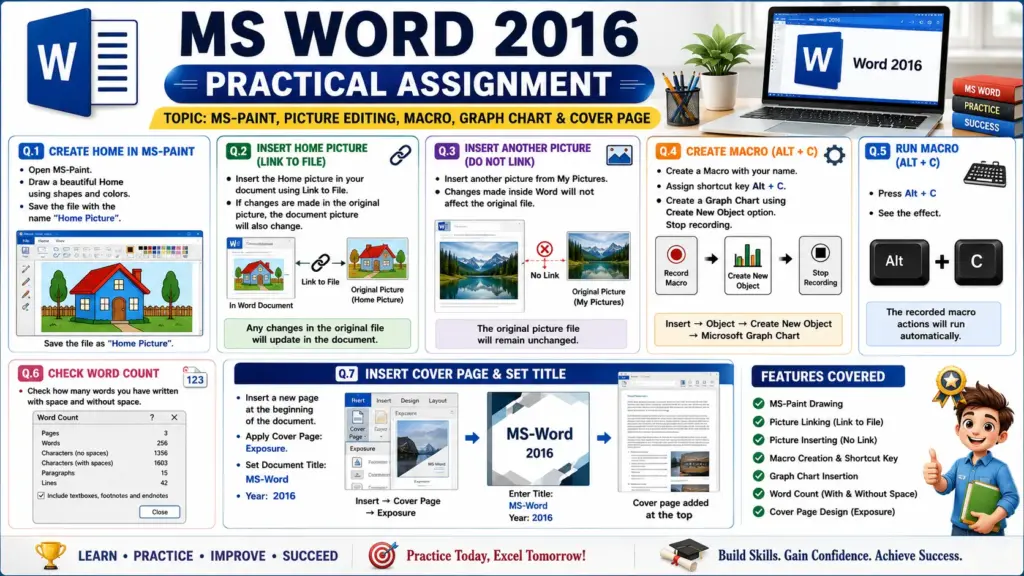
MS-Word Session-12: MS-Paint, Picture Editing, Macro, Graph Chart & Cover Page
Objective:
To learn picture insertion, linking images, embedding pictures, creating macros, using graph charts, checking word count and inserting cover pages in MS Word 2016.
MS Word Session-09: https://ctsdigital.in/ms-word-session-9/
Q.1- Create a Home in MS-Paint and Save It
Instructions:
- Open MS-Paint.
- Draw a beautiful Home design using shapes and colors.
- Save the file with the name:
CCC MCQ: https://ctsdigital.in/fundamental-of-computer/
Home Picture
Steps:
- Open MS-Paint.
- Use Shapes, Brush and Fill Color tools.
- Draw a colorful Home.
- Click File → Save As.
- Save the picture on Desktop or Documents folder.
MS Word Session-10: https://ctsdigital.in/ms-word-session-10/
Q.2- Insert Home Picture in Current Document with Linked File Option
Instructions:
- Insert the Home picture into the current Word document.
- If changes are made in the original picture, the document picture should also change automatically.
Steps:
- Open MS Word document.
- Click Insert → Pictures.
- Select the saved Home picture.
- Click the drop-down arrow beside Insert button.
- Select Link to File.
- Insert the picture.
MS Word Session-11: https://ctsdigital.in/ms-word-session-11/
Result:
Any changes made in the original picture file will automatically update inside the document.
Q.3- Insert Another Picture Without Changing Original File
Instructions:
- Insert another picture from My Pictures folder.
- Changes made inside Word should not affect the original image.
Steps:
- Click Insert → Pictures.
- Choose any picture from My Pictures.
- Click Insert only.
- Resize or edit the picture inside Word.
CCC MCQ: https://ctsdigital.in/libreoffice/
Result:
The original picture file will remain unchanged.
Q.4- Create Macro with Shortcut Key Alt + C
Instructions:
- Create a Macro using your name.
- Assign shortcut key:
Alt + C
- Create a Graph Chart using Create New Object option.
- Stop macro recording.
Steps:
- Click View → Macros → Record Macro.
- Type Macro Name:
Your Name
- Click Keyboard.
- Press shortcut key:
Alt + C
- Click Assign → Close.
- Go to:
Insert → Object → Create New Object
- Select Microsoft Graph Chart.
- Create a sample graph chart.
- Click Stop Recording Macro.
Q.5- Run Macro Using Shortcut Key
Instructions:
- Press:
Alt + C
- Observe the macro effect.
Result:
The recorded macro actions will run automatically.
Q.6- Check Word Count with Space and Without Space
Instructions:
- Check total words, characters with spaces and without spaces.
Steps:
- Click Review → Word Count.
- Check:
- Words
- Characters with spaces
- Characters without spaces
- Paragraphs
- Pages
Q.7- Insert Cover Page and Set Title
Instructions:
- Insert a new page at the beginning of the document.
- Apply Cover Page:
Exposure
- Set:
- Document Title: MS-Word
- Year: 2016
Steps:
- Place cursor at the top of document.
- Click:
Insert → Cover Page
- Select:
Exposure
- Enter:
- Title: MS-Word
- Year: 2016