MS-Word Session-10: MS Word Assignment 2016 helps students learn AutoCorrect setup, Rabbit picture insertion, Tabs formatting and professional table design in an easy way. This practical assignment improves MS Word skills through useful formatting tasks and smart document creation techniques. Students preparing for computer courses, practical exams or office work can easily understand important MS Office functions with this assignment. It covers text replacement, shortcut formatting and aligned table creation to make document editing faster, smarter and more professional for beginners and advanced learners alike.
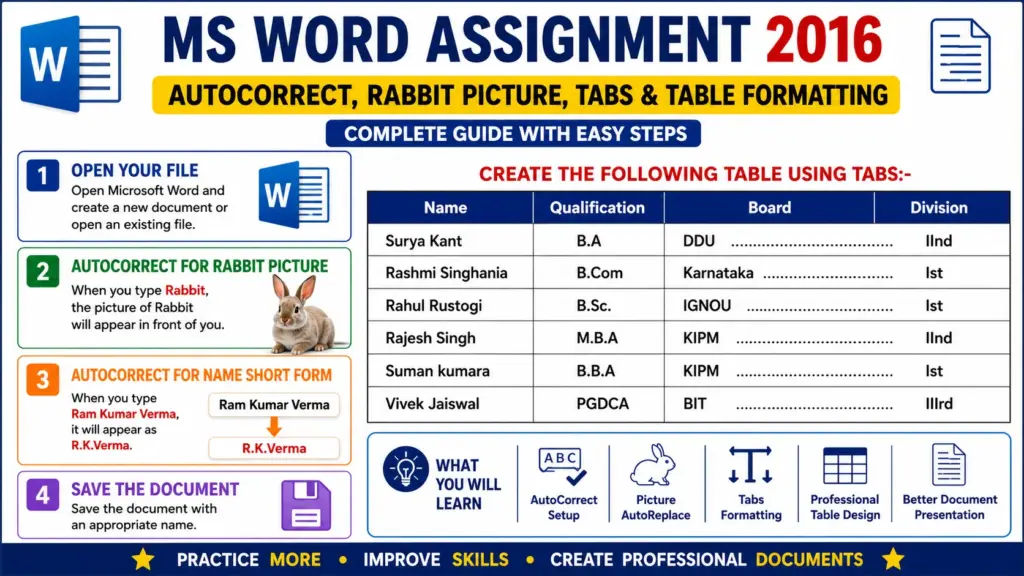
MS-Word Session-10: Learn AutoCorrect, Rabbit Picture Insert, Tabs and Professional Table Formatting in Easy Steps Today
AutoCorrect, AutoFormat and Tabs in MS Word
Q.1- Open Your File
- Open Microsoft Word.
- Create a new document or open an existing file.
Q.2- Create AutoCorrect for Rabbit Picture
Do such a requirement that when you type Rabbit, the picture of Rabbit will automatically appear in front of you.
CCC MCQ Question And Answer: https://ctsdigital.in/fundamental-of-computer/
Steps:
- Insert a Rabbit picture in MS Word.
- Select the picture.
- Go to File → Options → Proofing → AutoCorrect Options.
- In the Replace box type:
Rabbit - Click on Add and then press OK.
- Now whenever you type Rabbit and press Space/Enter, the Rabbit picture will appear automatically.
Q.3- Create AutoCorrect for Name Short Form
Do such a requirement that when you type Ram Kumar Verma, it will automatically appear as R.K.Verma.
Libre Office Writer MCQ Question And Answer: https://ctsdigital.in/libreoffice-2/
Steps:
- Go to File → Options → Proofing → AutoCorrect Options.
- In the Replace box type:
Ram Kumar Verma - In the With box type:
R.K.Verma - Click Add and then press OK.
- Now typing Ram Kumar Verma will automatically change into R.K.Verma.
Libre Office Calc MCQ Question And Answer: https://ctsdigital.in/libreoffice-calc/
Q.4- Create the Following Table by Using Tabs
1.5 Bar
1.8 left None
3 Bar
3.4 left none
5 left 2……
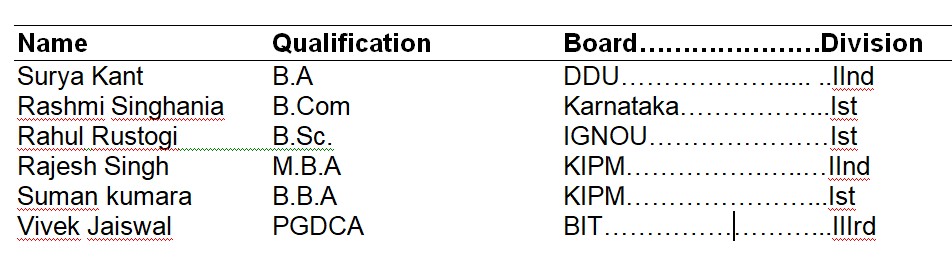
Instructions:
- Use Tabs for alignment.
- Apply proper spacing and formatting.
- Make the heading bold.
Ms Word Assignment: https://www.pinterest.com/ideas/ms-word-assignment/907447461283
Q.5- Save the Document
- Save the document with the name:
MS Word Assignment.docx