MS-Word Session-9: MS Word 2016 Assignment helps students learn template creation, header footer formatting, page number insertion and professional document styling easily. This practical guide covers A4 page setup, odd and even page headers, footer page numbers and stylish formatting techniques in a simple way. It is highly useful for computer course students who want to improve Microsoft Word skills and create professional documents with better formatting knowledge. Learn complete MS Word 202016 practical steps and boost your document designing skills quickly and effectively today.
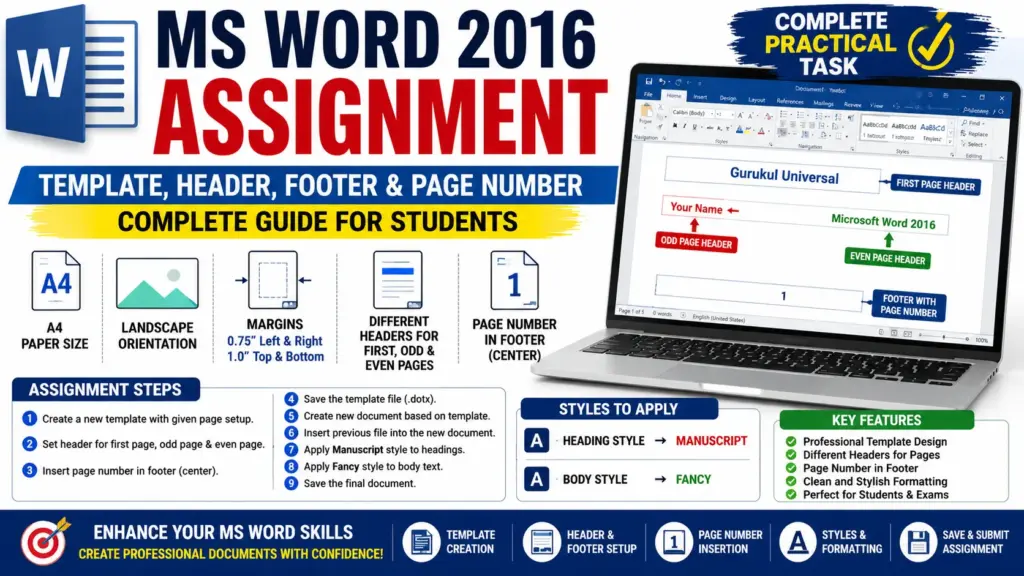
MS-Word Session-9: Assignment Instructions
Question 1: Create a New Template
Open Microsoft Word 2016 and create a new template with the following settings:
| Setting | Value |
|---|---|
| Paper Size | A4 |
| Orientation | Landscape |
| Left Margin | 0.75 Inch |
| Right Margin | 0.75 Inch |
| Top Margin | 1.0 Inch |
| Bottom Margin | 1.0 Inch |
Read More Article: Ms Word Session-01
Header Formatting
First Page Header
| Alignment | Text |
|---|---|
| Center | Gurukul Universal |
Odd Page Header
| Alignment | Text |
|---|---|
| Left | Your Name |
Read More Article: CCC MCQ Question and Answer
Even Page Header
| Alignment | Text |
|---|---|
| Right | Microsoft Word 2007 |
Footer Formatting
Footer with Page Number
Insert page numbers in the footer section of the document.
| Footer Position | Content |
|---|---|
| Center Footer | Page Number |
Read More Article: Ms Word Session-02
Method:
Insert Tab → Page Number → Bottom of Page → Plain Number
Question 2: Save the Template
Save the created template in .dotx format.
Suggested File Name:
MSWord_Template.dotx
Question3: Create a New Document
Create a new document using the template you created.
Question 4: Insert Previous File
Insert your previous document into the newly created document based on the template.
Read More Article: https://www.scribd.com/document/525651365/MS-Word-Assignments
Method:
Insert Tab → Object → Text from File → Select Previous Document
Question 5: Apply Styles
Apply the following styles in the document:
| Content | Style |
|---|---|
| Heading | Manuscript |
| Body Text | Fancy |
Read More Article: https://portal.ticer.pk/microsoft-office-assignments
Question 6: Save the Final Document
Save the final formatted document with an appropriate file name.
Suggested File Name:
Final_Template_Assignment.docx
Expected Output Format
First Page
| Position | Content |
|---|---|
| Header Center | Gurukul Universal |
| Footer Center | Page Number |
Odd Pages
| Position | Content |
|---|---|
| Header Left | Your Name |
| Footer Center | Page Number |
Even Pages
| Position | Content |
|---|---|
| Header Right | Microsoft Word 2007 |
| Footer Center | Page Number |
Submission Guidelines
- The document must be properly formatted
- All headers and footers should have correct alignment
- Page numbers must be inserted correctly
- The template must be used properly
- Heading and body styles should be applied correctly