MS-Word Session-2: MS Office 2016 Assignment complete guide with formatting steps, paragraph, and practical questions. Learn how to apply font styles, alignment, and effects in Microsoft Word 2016 easily. This assignment solution helps students understand document formatting clearly and improve their practical skills. Perfect for school and college students who want to complete their MS Word assignment correctly and score better marks with proper presentation and easy instructions.
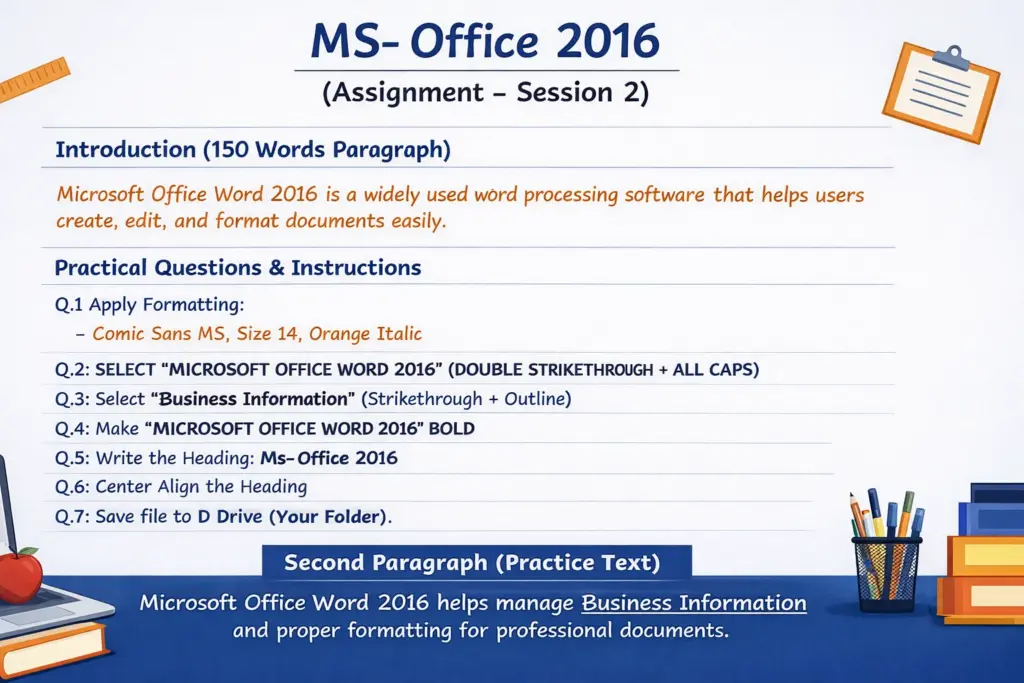
MS-Word Session-2: MS- Office 2016 Assignment –
Type Given Paragraphs:
Microsoft Office Word 2016 is a widely used word processing software that helps users create, edit, and format documents easily. It provides a user-friendly interface with various tools that make document creation simple and professional. With the help of Microsoft Office Word 2016, users can design letters, resumes, reports, and projects efficiently. It includes features like spell check, grammar correction, text formatting, and page layout options. Users can also insert tables, images, and charts to make documents more attractive and informative. This software is very useful for students, teachers, and office workers. It helps in organizing business information properly and presenting it in a clear format. Overall, Microsoft Office Word 2016 is an essential tool for creating professional and well-structured documents in daily life.
Read More Article: CCC MCQ Test
Practical Questions & Instructions
Q.1 Apply Formatting
Apply the following formatting to the first and second paragraphs:
- Font Face: Comic Sans MS
- Font Size: 14
- Font Color: Orange (Accent 6, Darker 25%)
- Font Style: Italic
Q.2
Select the text “MICROSOFT OFFICE WORD 2016” and apply:
- Double Strikethrough
- All Caps
Q.3
Select the text “Business Information” and apply:
- Strikethrough
- Outline Effect
Read More Article: Ms Word Session-01
Q.4
Make the text “Microsoft Office Word 2016” Bold
Q.5
Write the heading:
Ms- Office 2016
Q.6
Align the heading to Center
Q.7
Save the file with your name
Location: D Drive (in your created folder)
Read More Article: MS-office-practical-assignment-2026