MS-Word Session-3: MS Word 2016 Assignment Session 3 complete guide with advanced formatting, character spacing, scaling, and measurement unit changes. Learn how to adjust spacing, show non printing characters, and format paragraphs easily. This practical assignment solution helps students improve document presentation and understand MS Word tools effectively. Perfect for school and college students who want to complete their Word assignment correctly and score better marks with proper formatting and easy step by step instructions.
MS-Word Session-3: MS- Office 2016 Assignment
Type Given Paragraphs:
Microsoft Office Word 2016 is a powerful word processing software that helps users create professional documents easily. It provides advanced formatting tools that allow users to control text appearance, spacing, and layout effectively. With features like character spacing, scaling, and positioning, users can customize their documents according to their needs. It also includes options to show non-printing characters, which helps in understanding formatting elements like spaces, paragraph marks, and tabs. Microsoft Word 2016 is widely used in schools, colleges, and offices for preparing assignments, reports, and official documents. It improves productivity and ensures better presentation of information. Learning these formatting tools helps students create well-structured and visually appealing documents. Overall, Microsoft Word 2016 is an essential tool for improving document quality and professional skills.
Read More Article: CCC MCQ Test
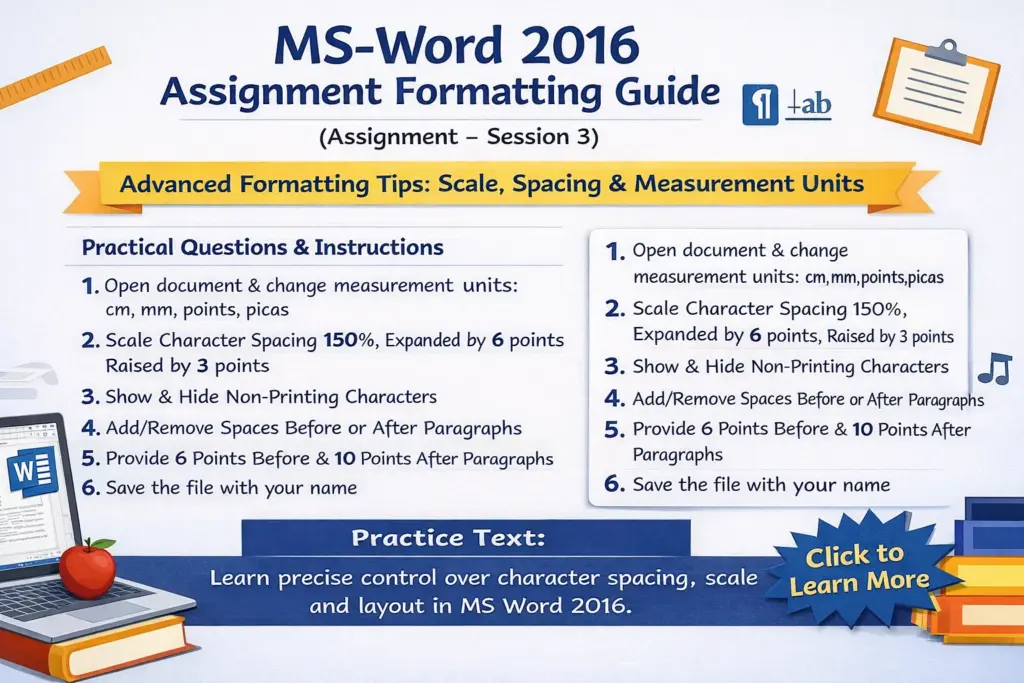
Practical Questions & Instructions
Q.1
Open the last saved document and change the measurement unit one by one:
- Centimeter (cm)
- Millimeter (mm)
- Points (pt)
- Picas (pc)
Now observe the changes in ruler, margins, and spacing.
Q.2
Select the second paragraph and apply the following formatting:
- Scale: 150%
- Character Spacing: Expanded by 6 points
- Position: Raised by 3 points
Read More Article: MS Word Assignment-01
Q.3
Show the non-printing characters (¶) and observe the changes like spaces, tabs, and paragraph marks.
After observation, hide them again.
Q.4
- Add space before the second paragraph
- Remove space after the third paragraph
Q.5
- Provide 6 points space before the first line of the first paragraph
- Provide 10 points space after the last line of the same paragraph
Q.6
Save the file with your name
Location: F Drive (in your created folder)
Read More Article: MS Word Assignment-02