MS-Word Session-4: MS Word Practical Assignment 2016 covers essential tasks like formatting, alignment, view modes, spell check, and highlighting in a simple step-by-step format. This assignment is designed for students to understand basic Word processing skills easily. It includes paragraph formatting, bold, underline, and document saving techniques. If you are learning Microsoft Word, this practical assignment will help you improve your skills and create professional documents with better presentation and accuracy.
Microsoft Word is a powerful word processing software used to create, edit, and format documents efficiently. In this assignment, we will learn and apply important features of MS Word through practical tasks. These include alignment, indentation, changing views, spell checking, formatting text, and highlighting. Understanding these tools helps in creating professional and well-structured documents. MS Word is widely used in schools, offices, and businesses for documentation purposes. This assignment will provide hands-on knowledge of basic tools, helping students improve their document presentation skills and build a strong foundation for advanced features.
Read More Article: CCC MCQ Test
MS-Word Session-4: MS Word Practical Assignment 2016
Type the Given Paragraphs
Microsoft Word is a powerful word processing software used to create, edit, and format documents efficiently. In this assignment, we will learn and apply important features of MS Word through practical tasks. These include alignment, indentation, changing views, spell checking, formatting text, and highlighting. Understanding these tools helps in creating professional and well-structured documents. MS Word is widely used in schools, offices, and businesses for documentation purposes. This assignment will provide hands-on knowledge of basic tools, helping students improve their document presentation skills and build a strong foundation for advanced features.
Read More Article: Libre office MCQ Test
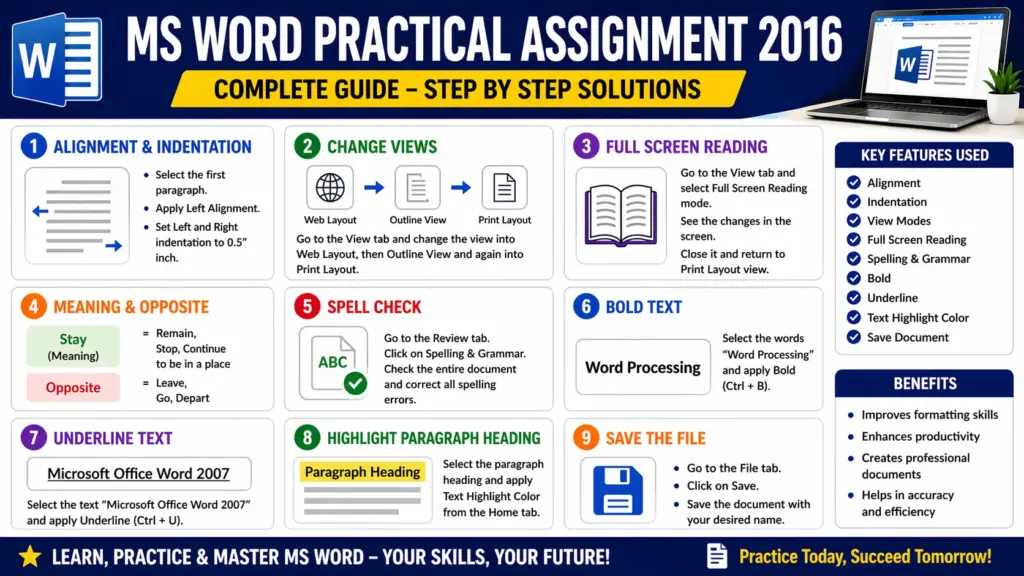
Q.1 Solution
Select the first paragraph.
Go to the Home tab and apply Left Alignment.
Then go to the Layout tab and set Left and Right indentation to 0.5 inch.
Q.2 Solution
Go to the View tab.
Select Web Layout view.
Then switch to Outline View.
Finally, return to Print Layout view.
Q.3 Solution
Go to the View tab and select Full Screen Reading mode.
Observe the changes in screen appearance.
Then close the mode and return to Print Layout view.
Read More Article: MS Word Assignment 01
Q.4 Solution
Meaning of “Stay”: Remain / Stop / Continue to be in a place
Opposite of “Stay”: Leave / Go / Depart
Q.5 Solution
Go to the Review tab.
Click on Spelling & Grammar.
Check the entire document and correct all spelling errors.
Q.6 Solution
Select the words “Word Processing”.
Apply Bold using Ctrl + B.
Q.7 Solution
Select the text “Microsoft Office Word 2007”.
Apply Underline using Ctrl + U.
Q.8 Solution
Select the paragraph heading.
Go to Text Highlight Color and apply a highlight color.
Q.9 Solution
Go to the File menu.
Click on Save and save the document with your desired name.