Excel Assignment Practice 13: इस MS Excel प्रैक्टिकल असाइनमेंट में Trace Precedents, Trace Dependents, Split, Remove Split, Freeze Panes और Unfreeze Panes का उपयोग चरणबद्ध तरीके से सीखें। यह छात्रों और शुरुआती उपयोगकर्ताओं के लिए उपयोगी गाइड है।
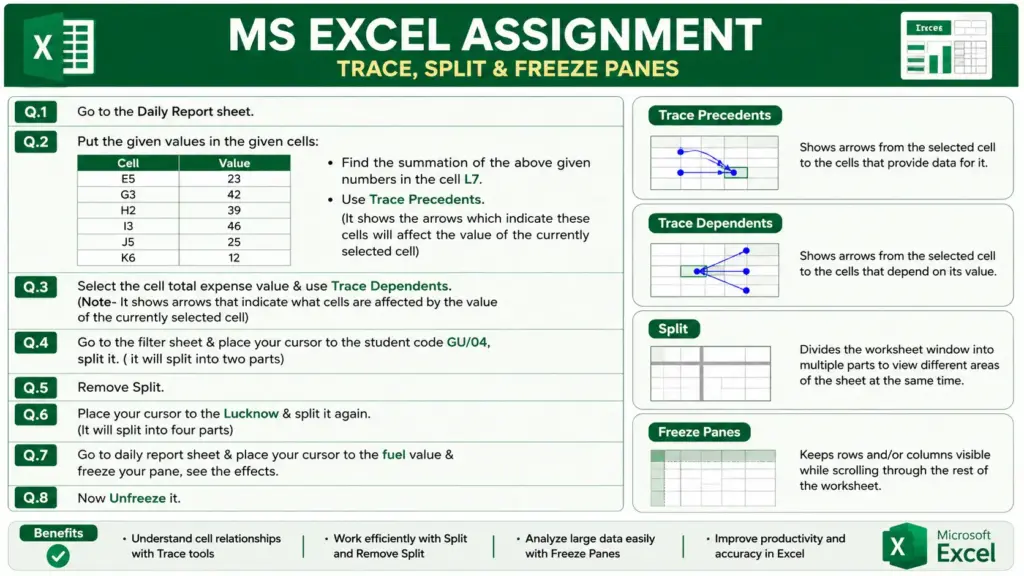
Q.1. Go to the Daily Report sheet.
Q.2. Enter the following values in the specified cells:
| Cell | Value |
|---|---|
| E5 | 23 |
| G3 | 42 |
| H2 | 39 |
| I3 | 46 |
| J5 | 25 |
| K6 | 12 |
Calculate the sum of these values in cell L7 using the formula:
=SUM(E5,G3,H2,I3,J5,K6)
After calculating the total, use Trace Precedents to display arrows showing which cells affect the value in cell L7.
Q.3. Select the cell containing the Total Expense value and apply Trace Dependents to identify the cells that are affected by the selected value.
Q.4. Go to the Filter sheet and place the cursor on the student code GU/04. Apply the Split feature to divide the worksheet into two sections.
Q.5. Remove the Split from the worksheet.
Q.6. Place the cursor on Lucknow and apply Split again so that the worksheet is divided into four sections.
Q.7. Return to the Daily Report sheet. Select the cell containing the Fuel value and apply Freeze Panes. Observe the effect while scrolling through the worksheet.
Q.8. Remove the Freeze Panes option by selecting Unfreeze Panes and observe the changes.
निष्कर्ष (Conclusion): Excel Assignment Practice 13
इस MS Excel प्रैक्टिकल असाइनमेंट के माध्यम से हमने Trace Precedents, Trace Dependents, Split, Remove Split, Freeze Panes तथा Unfreeze Panes जैसी महत्वपूर्ण सुविधाओं का अध्ययन किया। इन टूल्स की सहायता से वर्कशीट में डेटा के संबंधों को समझना, बड़े डेटा को आसानी से देखना तथा कार्य को अधिक व्यवस्थित और प्रभावी बनाना संभव होता है। ये फीचर्स डेटा विश्लेषण और वर्कशीट प्रबंधन को सरल एवं उत्पादक बनाते हैं।