Excel Assignment Practice 01: छात्रों के लिए बेहद आसान और उपयोगी प्रैक्टिकल गाइड है, जिसमें Auto Fill, Formula, Merge Cell, Table Creation, Shortcut Keys और Worksheet Editing जैसे महत्वपूर्ण टास्क स्टेप बाय स्टेप समझाए गए हैं। यह असाइनमेंट स्कूल, कॉलेज और कंप्यूटर कोर्स करने वाले विद्यार्थियों के लिए खासतौर पर तैयार किया गया है ताकि वे आसानी से Excel सीख सकें। इसमें नंबर सीरीज, वीक नेम, जोड़ का फॉर्मूला, मल्टीप्लिकेशन टेबल और प्रोफेशनल टेबल डिजाइन जैसी जरूरी प्रैक्टिस शामिल हैं। अगर आप Excel में मजबूत पकड़ बनाना चाहते हैं तो यह प्रैक्टिकल असाइनमेंट आपके लिए बेहद मददगार साबित होगा।
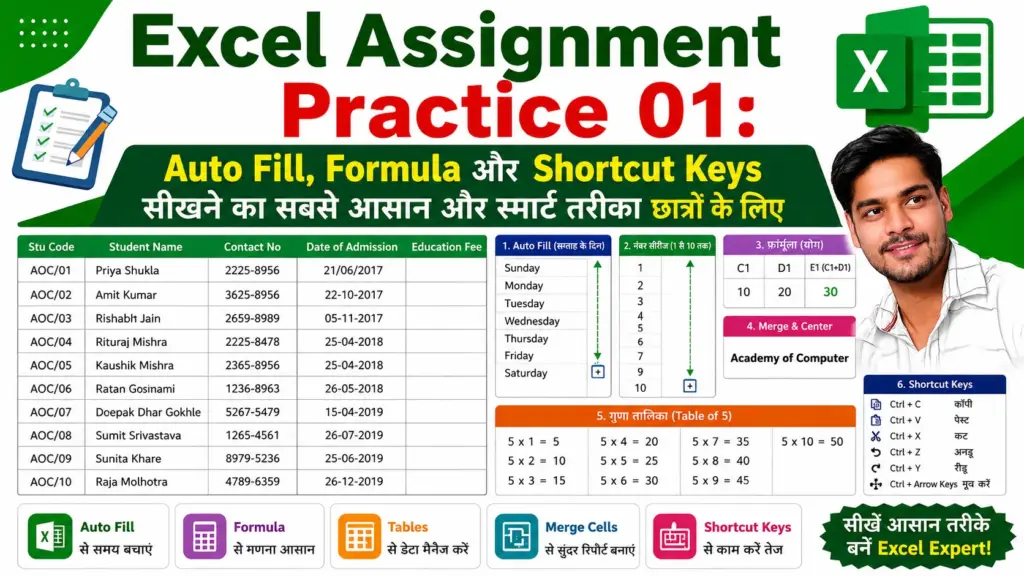
Excel Assignment Practice 01: Merge Cell, Table Creation और Formula Tasks से बनें Excel Expert जल्दी
Q.1 – Open a Worksheet and Perform Basic Tasks
- Open Microsoft Excel
- Click on Blank Workbook
- A new worksheet will open.
Q.2 – Auto Fill Weekly Names
- In cell A1, type Sunday
- Select cell A1
- Move the mouse to the small square at the bottom-right corner of the cell (Fill Handle).
- Drag downward up to A7.
Q.3 – Create Even Numbers Series
- In cell A1, type 2
- In cell A2, type 4
- Select both cells
- Drag the Fill Handle up to A10
Q.4 – Create Numbers from 1 to 100
- In cell B1, type 1
- In cell B2, type 2
- Select both cells
- Drag the Fill Handle up to B100
Result:
Numbers from 1 to 100 will automatically display.
Q.5 – Perform Addition Formula
- In cell C1, type 10
- In cell D1, type 20
- Click on cell E1
- Type the formula:
=C1+D1=E1
- Press Enter
Result:
The sum 30 will display automatically.
Q.6 – Merge Cells
- In cell A5, type CTS Digital
- Select cells A5 to D5
- Go to Home → Alignment → Merge & Center
Result:
The selected cells will become one single merged cell.
Q.7 – Move Around Worksheet Using Shortcut Key
Use the following shortcut:
Ctrl + Arrow Keys
Result:
The cursor will move quickly to different areas of the worksheet.
Q.8 – Create Multiplication Tables from 3 to 8
Create multiplication tables in different cells for:
Example:
3 × 1 = 3
3 × 2 = 6
3 × 3 = 9
Continue similarly for all tables.
Q.9 – Enter and Edit Your Name
- Type your name in any cell
- Use shortcut keys for editing:
Q.10 – Convert Multiple Cells into Single Cell
- Select multiple cells
- Go to Home → Merge & Center
Result:
Multiple selected cells will convert into one single cell.
Q.11 – Create a Table in Excel
Create the following table format:
| Stu Code | Student Name | Contact No | Date of Admission | Education Fee |
|---|---|---|---|---|
| AOC/01 | Priya Shukla | 2225-8956 | 21/06/2017 | |
| AOC/02 | Amit Kumar | 3625-8956 | 22-10-2017 | |
| AOC/03 | Rishabh Jain | 2659-8989 | 05-11-2017 | |
| AOC/04 | Rituraj Mishra | 2225-8478 | 25-04-2018 | |
| AOC/05 | Kaushik Mishra | 2365-8956 | 25-04-2018 | |
| AOC/06 | Ratan Goswami | 1236-8963 | 26-05-2018 | |
| AOC/07 | Deepak Dhar Gokhle | 5267-5479 | 15-04-2019 | |
| AOC/08 | Sumit Srivastava | 1265-4561 | 26-07-2019 | |
| AOC/09 | Sunita Khare | 8979-5236 | 25-06-2019 | |
| AOC/10 | Raja Molhotra | 4789-6359 | 26-12-2019 |