MS-Word Session-7: Learn how to create a professional MS Word Salary Table Assignment 2026 step by step with easy methods. This guide explains table insertion, salary calculation formulas, shortcut keys, and heading formatting in a simple way. Perfect for students and beginners, it helps you build clean and attractive documents quickly. Improve your MS Word skills and complete your assignment with confidence using this easy and practical tutorial designed for better understanding and high-quality results.
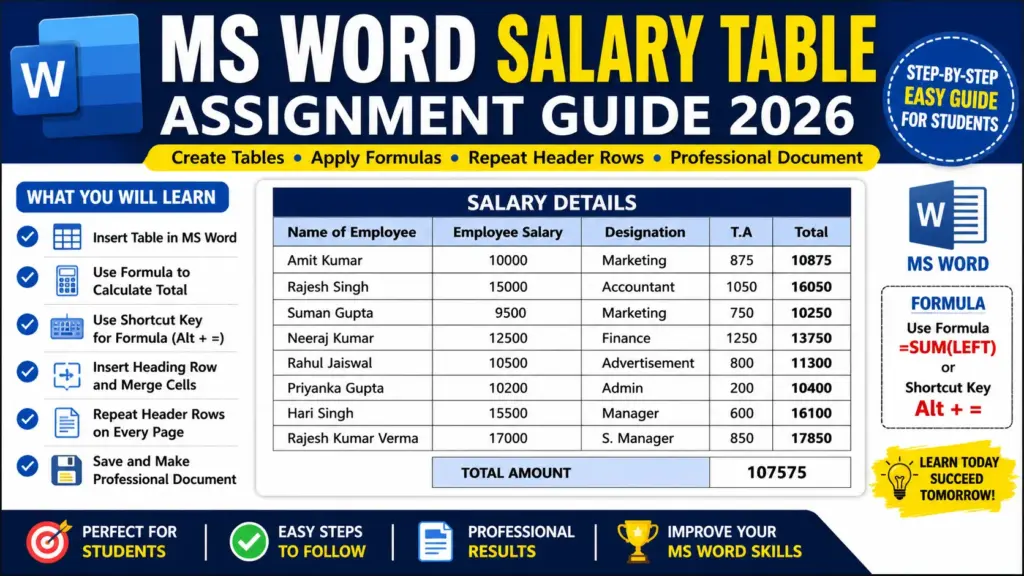
MS-Word Session-7: Salary Table Creation & Formatting
Objective
To create and format a salary table in MS Word using table tools, formulas, and formatting options.
Q.1. Open the Last Saved Document and Insert Table
- Open MS Word.
- Go to File → Open → Recent Documents.
- Select your last saved document.
- Click on Insert → Table and choose the required number of rows and columns.
CCC MCQ Question & Answer: https://ctsdigital.in/fundamental-of-computer/
Q.2. Create the Given Table
| Name of Employee | Employee Salary | Designation | T.A | Total |
| Amit Kumar | 10000 | Marketing | 875 | |
| Rajesh Singh | 15000 | Accountant | 1050 | |
| Suman Gupta | 9500 | Marketing | 750 | |
| Neeraj Kumar | 12500 | Finance | 1250 | |
| Rahul Jaiswal | 10500 | Advertisement | 800 | |
| Priyanka Gupta | 10200 | Admin | 200 | |
| Hari Singh | 15500 | Manager | 600 | |
| Rajesh Kumar Verma | 17000 | Sr. Manager | 850 |
CCC MCQ Question & Answer: https://ctsdigital.in/libreoffice-2/
Q.3. Find Total Amount Using Formula
- Click inside the Total column.
- Go to Table Layout → Formula.
- Use formula:
=SUM(LEFT)
- Press OK.
CCC MCQ Question & Answer: https://ctsdigital.in/libreoffice-calc/
Shortcut Key for Formula
- Press Alt + = (in some versions) or use:
- Alt → J → L → F (Table Layout → Formula)
Q.4. Insert Row and Add Heading
- Insert a new row above the first row.
- Select all cells of the new row.
- Click on Merge Cells.
- Type heading:
“Salary Details” - Apply formatting:
- Bold
- Center Alignment
- Increase Font Size
Read More Article: https://www.pinterest.com/ideas/ms-word-assignment/907447461283/
Q.5. Apply Heading Row Repeat
- Select the header row (Name, Salary, etc.).
- Go to Table Layout → Repeat Header Rows.
- Press Tab repeatedly to extend the table to next page.
- Observe that the header repeats on each page.
Q.6. Save the Document
- Click File → Save As.
- Choose location.
- Save file as:
Salary_Table_Assignment.docx
Conclusion
This assignment helps in learning how to create tables, apply formulas, format headings, and manage multi-page tables in MS Word efficiently. These skills are essential for professional document creation.